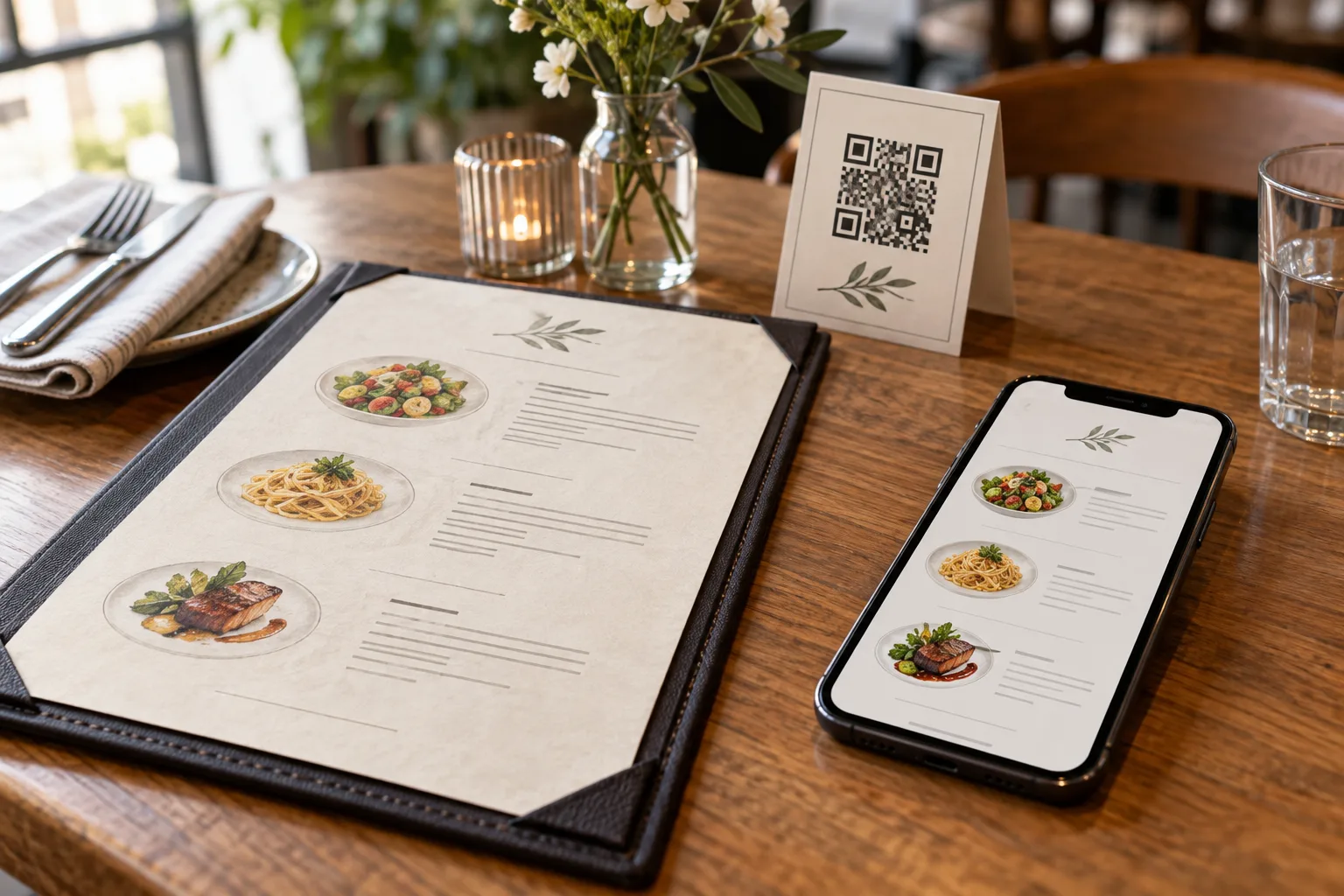
You can keep a printed QR code when its destination stays the same. A QR code that opens your restaurant's public menu URL continues to open that page after you edit a price. The code contains the link; it does not contain a copy of every item and price.
First check what your printed QR opens
Scan an existing print and look at the destination. It should open the restaurant's current public menu. A code that links directly to an old image, a PDF file or another provider will not automatically become a GetFreeMenu code. If you replace that destination with a different URL, plan a new print and test it before use.
For an existing GetFreeMenu menu, keep the restaurant record and public menu URL. Do not delete and recreate the restaurant just to update prices. Table-specific ordering codes should be checked in their own table workflow.
Edit and save the price
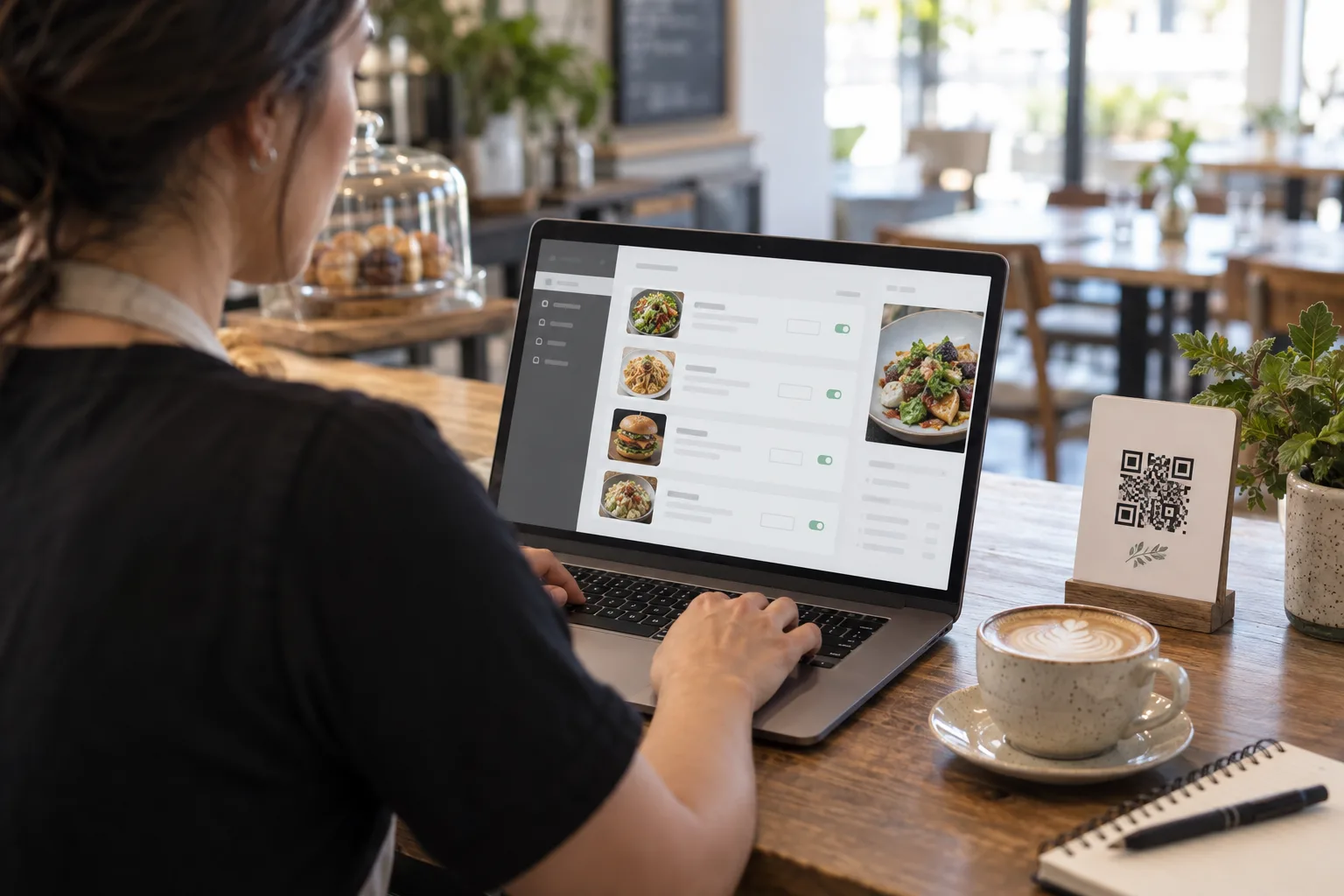
Open your restaurant in the dashboard, find the item in the menu editor and change its price. Check the currency and decimal value before saving. If the portion size also changes, edit its name or description so guests know what the new price includes. Review translations when the item details change.
Example: an iced latte changes from THB 75 to THB 80. Save 80 on that item's price field; do not change the restaurant URL or generate a new restaurant. This example demonstrates the workflow and is not a recommendation for your café's price.
Verify the public result
Open the public menu again after saving and find the same item. Then scan your original printed QR on another phone and confirm the new price appears. Reload an already-open menu if it still shows old content. Check hot and iced variants, sizes and similar item names so the change has not been applied to the wrong drink.
If the price still looks old, verify that the save succeeded and that you edited the restaurant the printed link actually opens. An old browser tab, a different venue's menu or an unsuccessful save can all make a correct-looking edit appear missing. Resolve that mismatch before sharing more copies.
Keep other price displays consistent
Your website, paper takeaway menu and delivery listings do not necessarily update with your GetFreeMenu menu. Keep a short list of those other places and review them whenever a price changes. Within your online menu, also check text that embeds a price, such as “Lunch set 150”, because it may be separate from an item's numeric price field.
When you need a new print
Print and test a new code if you intentionally move to a different public menu URL, replace an old PDF link with an online menu, or find that the original print is damaged or difficult to scan. A content update at the same URL normally does not need a new QR. There is no need to buy a separate dynamic-QR service just to edit the content behind your existing menu link.
Read the first-menu setup guide for the initial print test, or see Free QR Menu to start a menu. The core menu remains free; optional plans and limits are described on the pricing page.
Frequently Asked Questions
Does a QR code store my menu prices?
A QR code for a public web menu stores its destination URL. The prices are content on the page, so editing them does not require changing that URL.
Will a QR code for my old PDF automatically open my new menu?
No. Check the exact destination of the printed code. If your new menu has a different URL, use and test a code for the new destination.