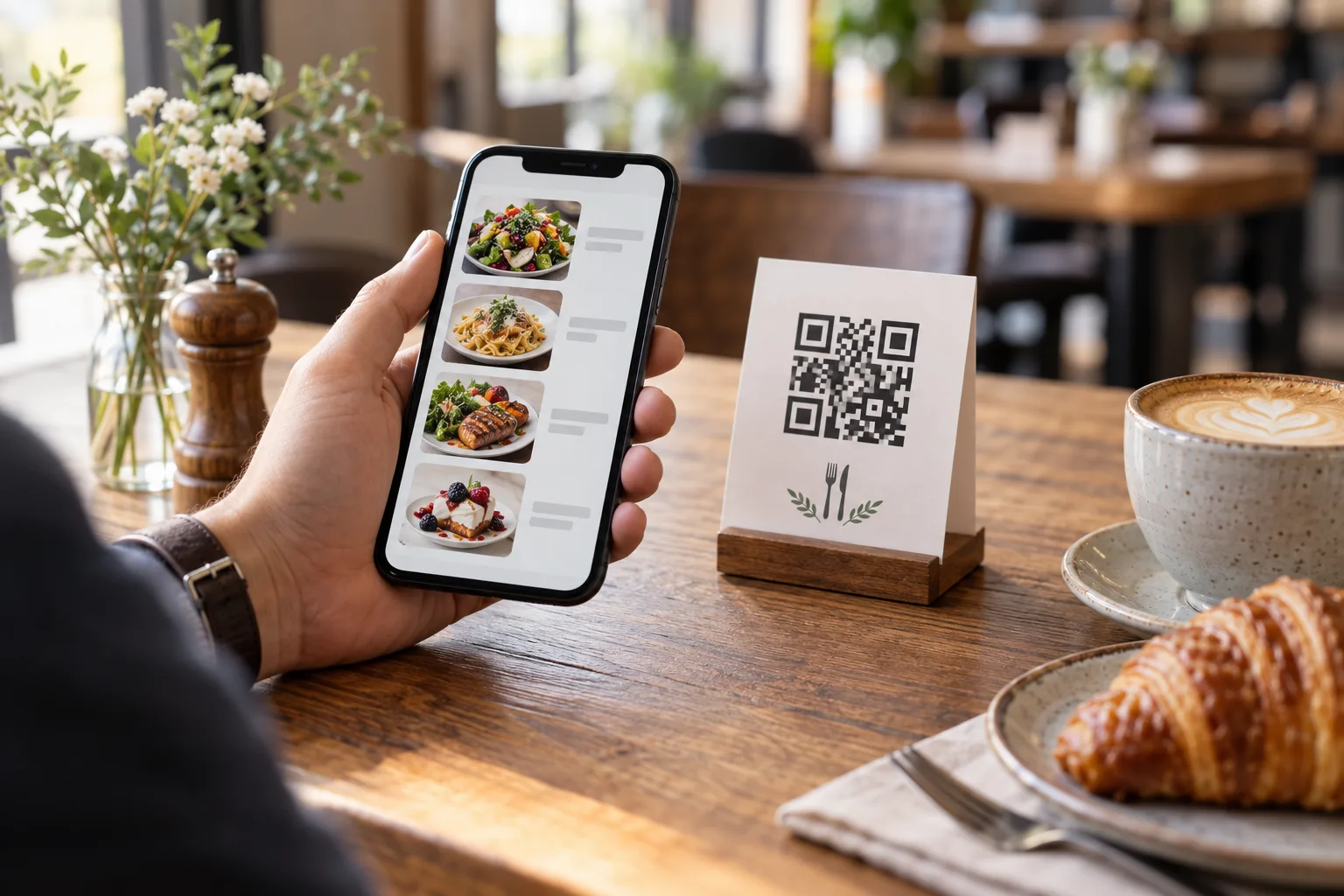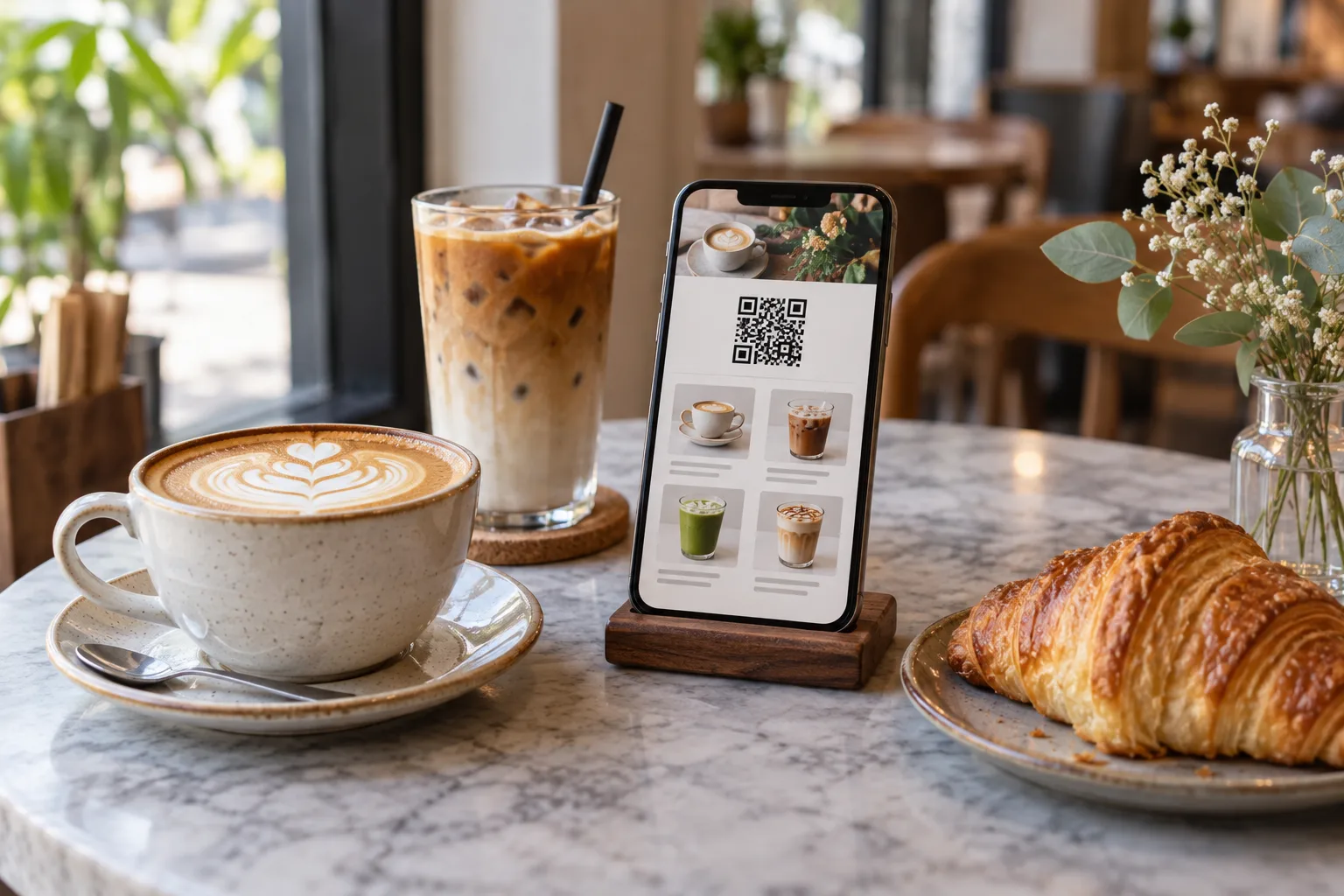
A useful café QR menu lets a guest find a drink, understand what is included and see its price without asking the counter to explain every line. Start with your actual drinks and organise them around how guests order. The following menu is an illustrative template, not a real café's sales data or a claim about the best prices.
Example: a short coffee and bakery menu
| Category | Item | Example price | Description |
|---|---|---|---|
| Coffee | Hot americano | THB 60 | Espresso with hot water |
| Coffee | Iced latte | THB 75 | Espresso with milk over ice |
| Tea | Iced matcha latte | THB 85 | Matcha with milk over ice |
| Bakery | Butter croissant | THB 65 | Flaky butter pastry |
Replace the example prices with your own currency and costed prices. Name the item consistently in the kitchen and on the menu. If the photo shows a large iced drink, make clear which portion the listed price buys. A product image should represent your drink, not an unrelated stock photo.
Make size and temperature clear
A price such as “Latte 75” leaves questions if hot and iced drinks cost different amounts. For a simple first menu, list “Hot latte” and “Iced latte” as separate items with their own descriptions and prices. Do the same for sizes when that makes the guest's choice clearer. Use only configuration options that are available in your current setup; do not describe an unsupported customization flow.
For a milk alternative, state whether it is included, charged separately or available on request. Confirm the actual ingredients with staff. A menu description does not establish that a drink is suitable for every dietary requirement.
Keep seasonal drinks easy to find
Use a seasonal category only when those drinks are available. Add the serving format and the ingredients that distinguish the drink, for example “Iced orange espresso — espresso poured over orange juice and ice.” When the recipe changes, review the photo, description and translations together. Mark an item unavailable when you cannot serve it instead of leaving an outdated offer on the public menu.
Check the mobile experience
Open your preview on a phone. Can the guest find coffee without scrolling past a long introduction? Are the hot and iced prices distinguishable? Do descriptions wrap naturally? Is there enough contrast to read the price? Ask a staff member to find two specific drinks using only the menu. Correct the points that caused confusion before printing your QR.
The setup guide covers account verification, adding the café and testing a printed code. You can also use the interactive demo from Free QR Menu to explore the product before creating a restaurant.
Publish once, maintain regularly
Keep your public menu link stable when you change seasonal drinks. Updating the content behind that link lets you keep the same printed QR code. Use our guide to changing prices for a check after saving. For international guests, review the menu translation examples and keep the drink name consistent across languages.
When the menu is ready, create your café's free QR menu. Free includes the core QR menu; account limits and optional Ad-Free or Pro features are listed on the pricing page.